

The Awesome Miner database stores mining history (hash rate, power, uptime, ...) and user activity. By default Awesome Miner stores two database files in the same folder as the configuration files.
When deploying Awesome Miner in large scale mining operations where the mining history is stored for a longer period of time, the amount of data becomes large. To improve performance when using the Mining History feature, an external SQL server can be used.
Awesome Miner supports the following SQL server software:
Preparing SQL server
This guide assumes that either a MySQL server or a MariaDB server is already installed. These SQL servers can either run on Windows or Linux - either on the same computer as Awesome Miner or on a separate computer. To prepare the Awesome Miner database on the SQL server, use a SQL client tool to execute SQL queries. These tools are available on both Linux and Windows.
Please note that the SQL client application is not required to be installed on the same computer as Awesome Miner because it will not be used by Awesome Miner. The SQL client is only required to create the Awesome Miner database and user account.
Linux client (Ubuntu)
This guide assumes that you run the SQL client on the same computer as the SQL server. Run the following commands to connect to the local SQL server:
sudo apt install mysql-client
mysql -h 127.0.0.1 -u root -p
When prompted for the password, enter the root password.
Windows client
This guide will not describe how to install a SQL client and connect to a SQL server on Windows. There are many SQL client applications with a graphical user interface available for Windows. One example is HeidiSQL.
SQL commands
Once the SQL client application is connected to the SQL server, execute the following commands.
CREATE DATABASE awesomeminer;
CREATE USER 'awesomeuser'@'%' IDENTIFIED BY 'awesomepass';
GRANT ALL PRIVILEGES ON awesomeminer.* TO 'awesomeuser'@'%';
The commands above will create a database called awesomeminer. This name cannot be changed. In addition, a new database user called awesomeuser with the password awesomepass is being created and given access to this database. This username and password can be changed in the SQL statements above. The recommendation is to set a more secure password than being used in this example. The username and password created here will be entered in the Awesome Miner application in the next step.
Configure Awesome Miner
The SQL server is configured in the Awesome Miner Options dialog, History section. Select MySQL/MariaDB and specify the hostname of the SQL server together with the username and password created in the previous step.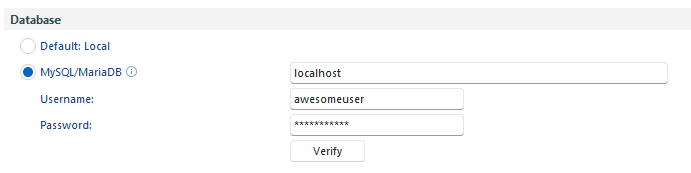
Use the Verify button to test the connection to the SQL server. The result will be displayed as a message box with one of the following messages:
- Connection successful
Awesome Miner has been successfully configured - Connection failure
Awesome Miner was unable to establish a TCP/IP connection to the specified SQL server - Authentication failed
Awesome Miner was able to connect but the specified username and password are not accepted - Access denied
Awesome Miner was able to connect and login to the SQL server but unable to gain access to the database called awesomeminer. - General failure
Any other error will display this message
Troubleshooting
- Use the Verify button in the Options dialog, History section, to get an specific error message indicating what the problem might be
- Use a SQL client application to connect to the SQL server. This will verify if the connection is possible to establish and can rule out any issues specific to Awesome Miner
- For SQL server running on Linux, verify that the SQL server process is configured to accept connections from non-local clients, in case Awesome Miner and the SQL server is running on separate servers. Use "netstat -nlp" on Linux to check if the SQL server process is configured to only listen to local connections.
Migrate from local database files to external SQL server
Awesome Miner includes a command line tool for migrating all data from the local database files to an external SQL server. The steps are the following
- Setup the SQL server and initiate the Awesome Miner database and user account according to the instructions in the section Preparing SQL server above.
- Run the migration tool
- Configure Awesome Miner to use the external SQL server. See the section Configure Awesome Miner above for more details.
Note: In case you want to migrate data - the migration tool must be used first, before configuring Awesome Miner to use the external SQL server. Once Awesome Miner has connected to the external SQL server once, migration is no longer possible unless the entire Awesome Miner database on the SQL server is removed.
Example usage
- First parameter is the path to the Awesome Miner configuration folder where the database files are located
- Second parameter is the IP address to the SQL server
- Third parameter is an SQL server user account with permissions to the Awesome Miner database.
The command line tool will prompt for the SQL password before the migration process begins.
AwesomeDataImport.exe C:\Users\<YourUsername>\AppData\Roaming\AwesomeMiner 192.168.0.123 awesomeuser
Example on Linux:
./AwesomeDataImport /root/.config/AwesomeMiner 192.168.0.123 awesomeuser